hbtop
hbtop is a real-time monitoring tool for HBase like Unix's top command. It can display summary information as well as metrics per Region/Namespace/Table/RegionServer. In this tool, you can see the metrics sorted by a selected field and filter the metrics to see only metrics you really want to see.
Usage
You can run hbtop with the following command:
$ hbase hbtopIn this case, the values of hbase.client.zookeeper.quorum and zookeeper.znode.parent in hbase-site.xml in the classpath or the default values of them are used to connect.
Or, you can specify your own zookeeper quorum and znode parent as follows:
$ hbase hbtop -Dhbase.client.zookeeper.quorum=<zookeeper quorum> -Dzookeeper.znode.parent=<znode parent>
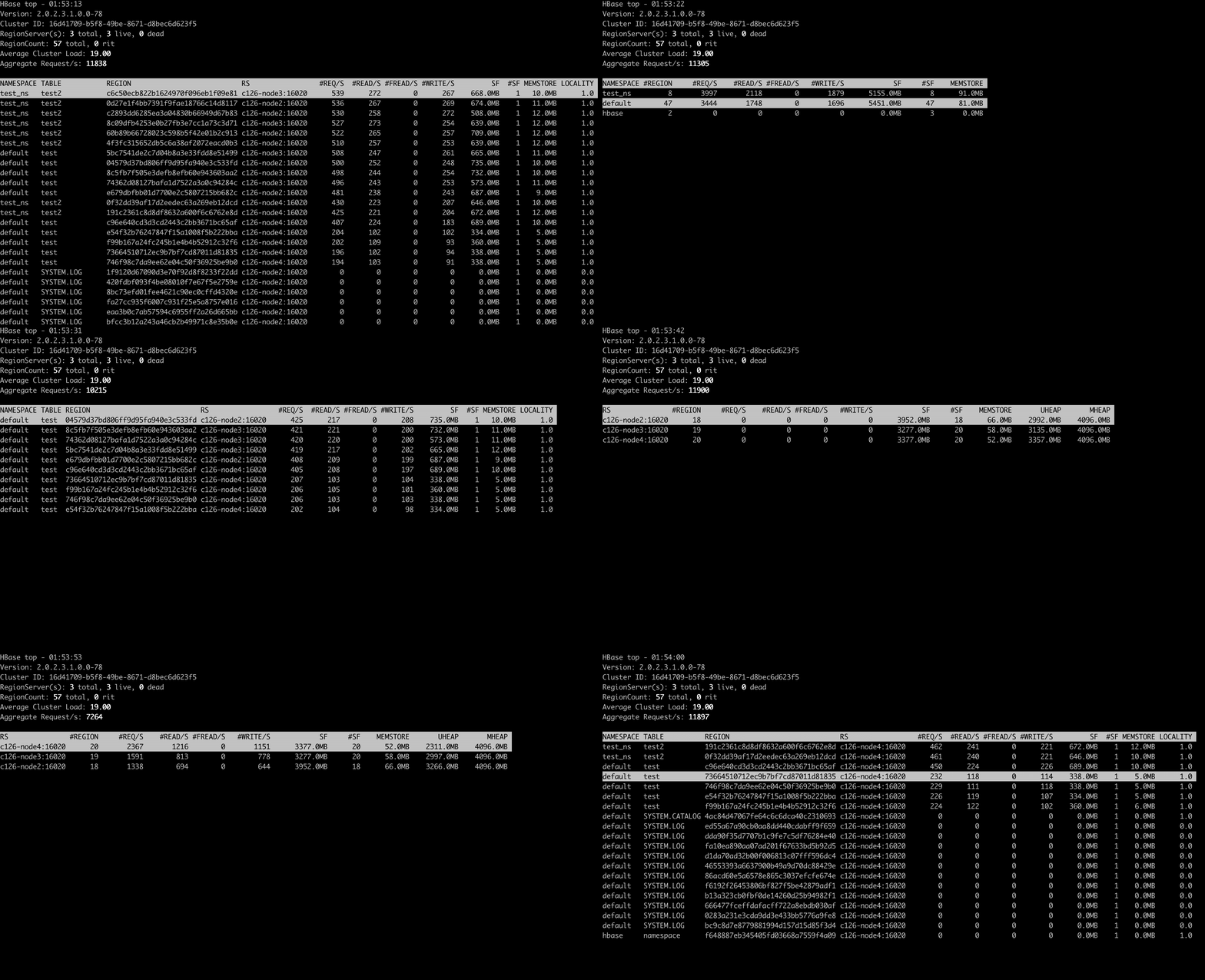
The top screen consists of a summary part and of a metrics part.
In the summary part, you can see HBase Version, Cluster ID, The number of region servers, Region count, Average Cluster Load and Aggregated Request/s.
In the metrics part, you can see metrics per Region/Namespace/Table/RegionServer depending on the selected mode.
The top screen is refreshed in a certain period – 3 seconds by default.
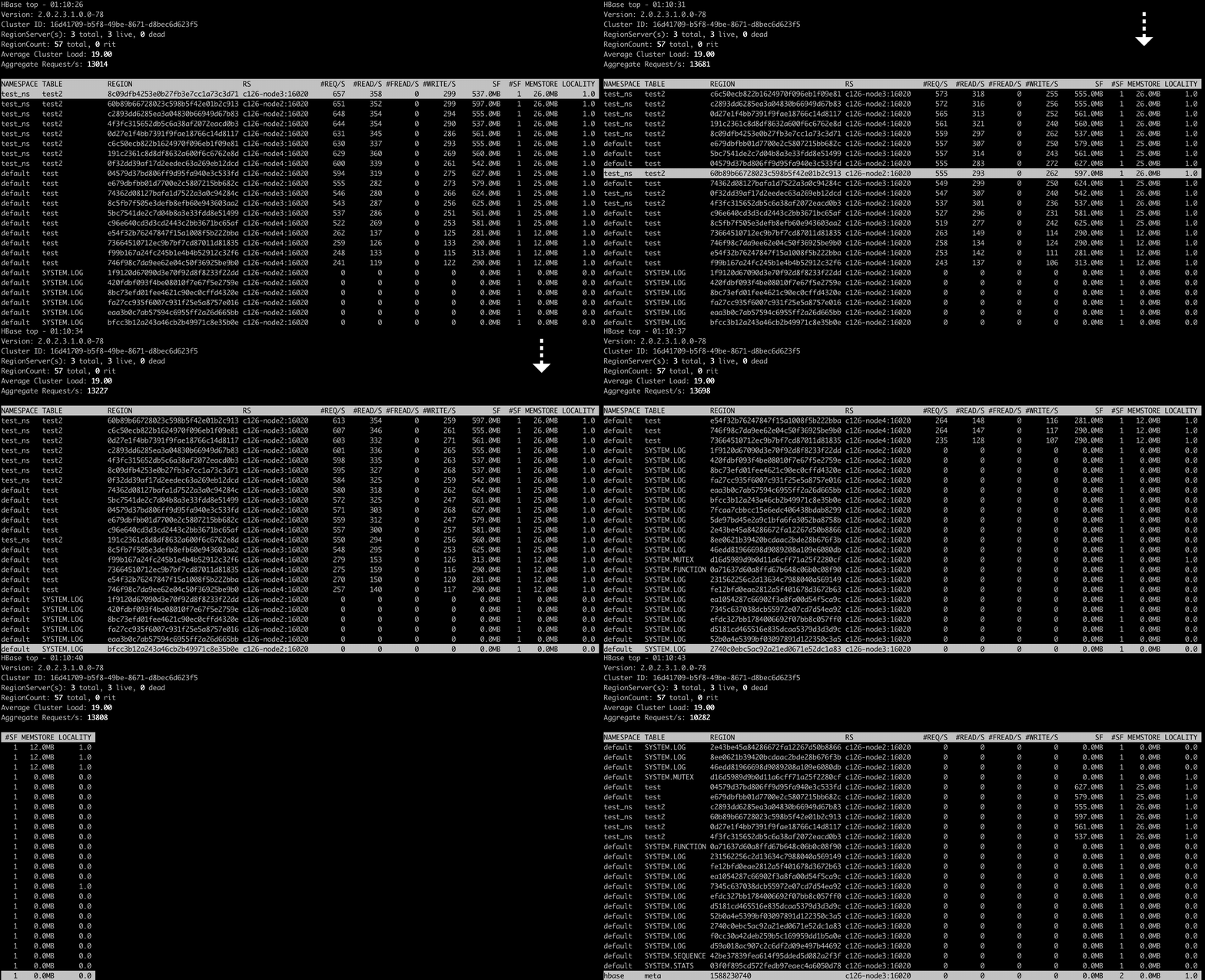
Scrolling metric records
You can scroll the metric records in the metrics part.
Command line arguments
| Argument | Description |
|---|---|
-d,--delay <arg> | The refresh delay (in seconds); default is 3 seconds |
| -h,--help | Print usage; for help while the tool is running press h key |
-m,--mode <arg> | The mode; n (Namespace)| t (Table)| r (Region)| s (RegionServer), default is r |
-n,--numberOfIterations <arg> | The number of iterations |
| -O,--outputFieldNames | Print each of the available field names on a separate line, then quit |
-f,--fields <arg> | Show only the given fields. Specify comma separated fields to show multiple fields |
-s,--sortField <arg> | The initial sort field. You can prepend a + or - to the field name to also override the sort direction. A leading + will force sorting high to low, whereas a - will ensure a low to high ordering |
-i,--filters <arg> | The initial filters. Specify comma separated filters to set multiple filters |
| -b,--batchMode | Starts hbtop in Batch mode, which could be useful for sending output from hbtop to other programs or to a file. In this mode, hbtop will not accept input and runs until the iterations limit you've set with the -n command-line option or until killed |
Modes
There are the following modes in hbtop:
| Mode | Description |
|---|---|
| Region | Showing metric records per region |
| Namespace | Showing metric records per namespace |
| Table | Showing metric records per table |
| RegionServer | Showing metric records per region server |
| User | Showing metric records per user |
| Client | Showing metric records per client |
Region mode
In Region mode, the default sort field is #REQ/S.
The fields in this mode are as follows:
| Field | Description | Displayed by default |
|---|---|---|
| RNAME | Region Name | false |
| NAMESPACE | Namespace Name | true |
| TABLE | Table Name | true |
| SCODE | Start Code | false |
| REPID | Replica ID | false |
| REGION | Encoded Region Name | true |
| RS | Short Region Server Name | true |
| LRS | Long Region Server Name | false |
| #REQ/S | Request Count per second | true |
| #READ/S | Read Request Count per second | true |
| #FREAD/S | Filtered Read Request Count per second | true |
| #WRITE/S | Write Request Count per second | true |
| SF | StoreFile Size | true |
| USF | Uncompressed StoreFile Size | false |
| #SF | Number of StoreFiles | true |
| MEMSTORE | MemStore Size | true |
| LOCALITY | Block Locality | true |
| SKEY | Start Key | false |
| #COMPingCELL | Compacting Cell Count | false |
| #COMPedCELL | Compacted Cell Count | false |
| %COMP | Compaction Progress | false |
| LASTMCOMP | Last Major Compaction Time | false |
Namespace mode
In Namespace mode, the default sort field is #REQ/S.
The fields in this mode are as follows:
| Field | Description | Displayed by default |
|---|---|---|
| NAMESPACE | Namespace Name | true |
| #REGION | Region Count | true |
| #REQ/S | Request Count per second | true |
| #READ/S | Read Request Count per second | true |
| #FREAD/S | Filtered Read Request Count per second | true |
| #WRITE/S | Write Request Count per second | true |
| SF | StoreFile Size | true |
| USF | Uncompressed StoreFile Size | false |
| #SF | Number of StoreFiles | true |
| MEMSTORE | MemStore Size | true |
Table mode
In Table mode, the default sort field is #REQ/S.
The fields in this mode are as follows:
| Field | Description | Displayed by default |
|---|---|---|
| NAMESPACE | Namespace Name | true |
| TABLE | Table Name | true |
| #REGION | Region Count | true |
| #REQ/S | Request Count per second | true |
| #READ/S | Read Request Count per second | true |
| #FREAD/S | Filtered Read Request Count per second | true |
| #WRITE/S | Write Request Count per second | true |
| SF | StoreFile Size | true |
| USF | Uncompressed StoreFile Size | false |
| #SF | Number of StoreFiles | true |
| MEMSTORE | MemStore Size | true |
RegionServer mode
In RegionServer mode, the default sort field is #REQ/S.
The fields in this mode are as follows:
| Field | Description | Displayed by default |
|---|---|---|
| RS | Short Region Server Name | true |
| LRS | Long Region Server Name | false |
| #REGION | Region Count | true |
| #REQ/S | Request Count per second | true |
| #READ/S | Read Request Count per second | true |
| #FREAD/S | Filtered Read Request Count per second | true |
| #WRITE/S | Write Request Count per second | true |
| SF | StoreFile Size | true |
| USF | Uncompressed StoreFile Size | false |
| #SF | Number of StoreFiles | true |
| MEMSTORE | MemStore Size | true |
| UHEAP | Used Heap Size | true |
| MHEAP | Max Heap Size | true |
User mode
In User mode, the default sort field is #REQ/S.
The fields in this mode are as follows:
| Field | Description | Displayed by default |
|---|---|---|
| USER | user Name | true |
| #CLIENT | Client Count | true |
| #REQ/S | Request Count per second | true |
| #READ/S | Read Request Count per second | true |
| #WRITE/S | Write Request Count per second | true |
| #FREAD/S | Filtered Read Request Count per second | true |
Client mode
In Client mode, the default sort field is #REQ/S.
The fields in this mode are as follows:
| Field | Description | Displayed by default |
|---|---|---|
| CLIENT | Client Hostname | true |
| #USER | User Count | true |
| #REQ/S | Request Count per second | true |
| #READ/S | Read Request Count per second | true |
| #WRITE/S | Write Request Count per second | true |
| #FREAD/S | Filtered Read Request Count per second | true |
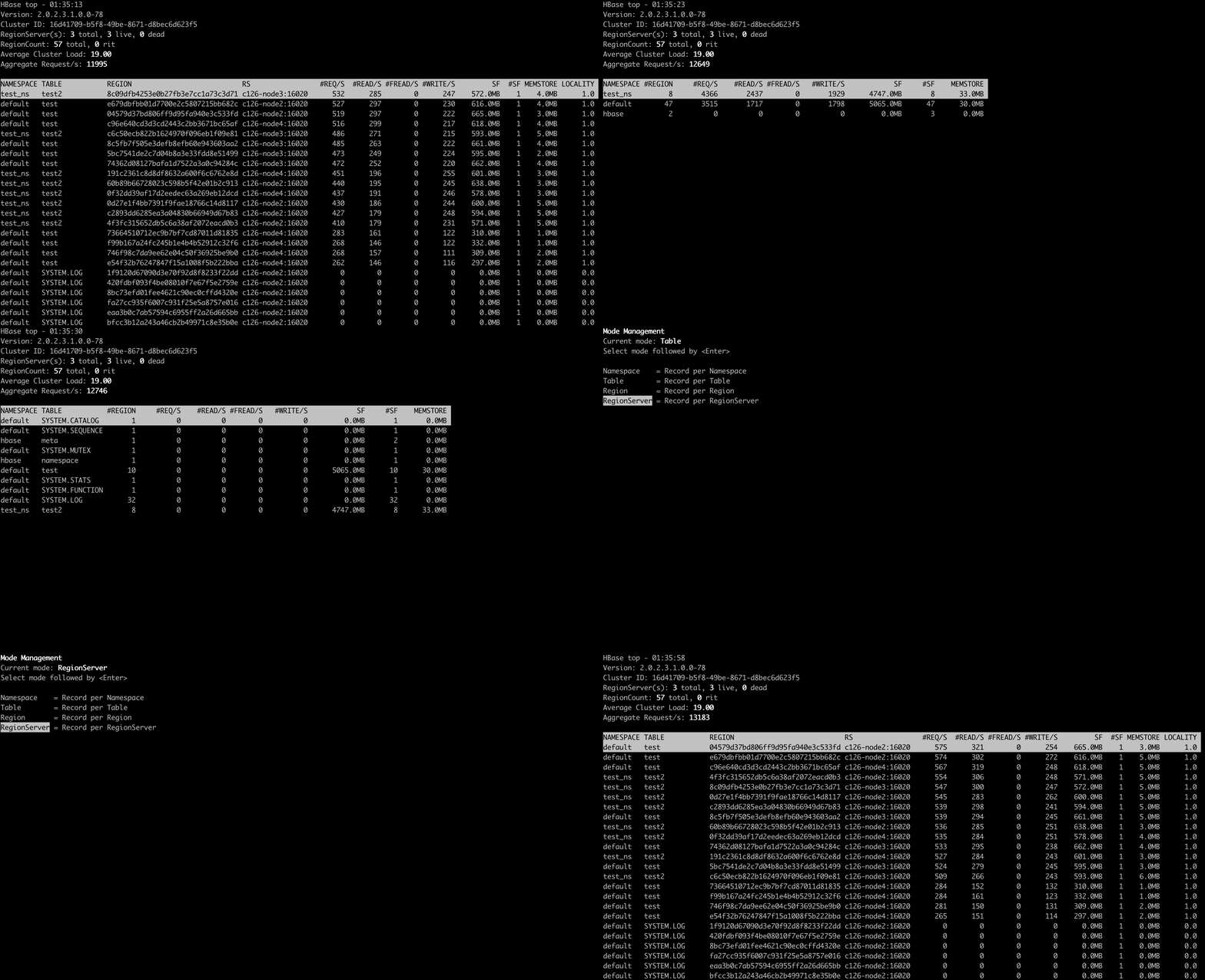
Changing mode
You can change mode by pressing m key in the top screen.
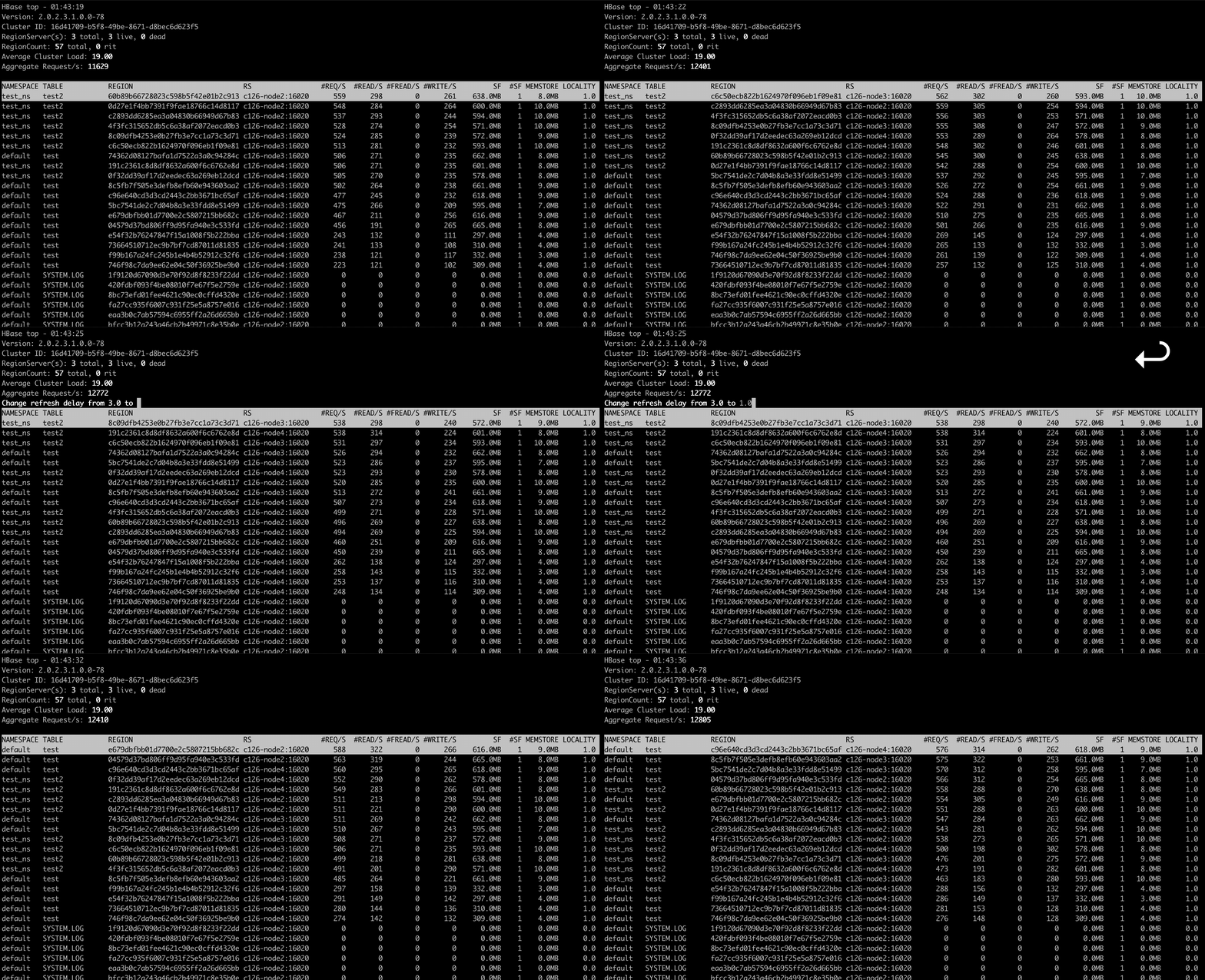
Changing the refresh delay
You can change the refresh by pressing d key in the top screen.
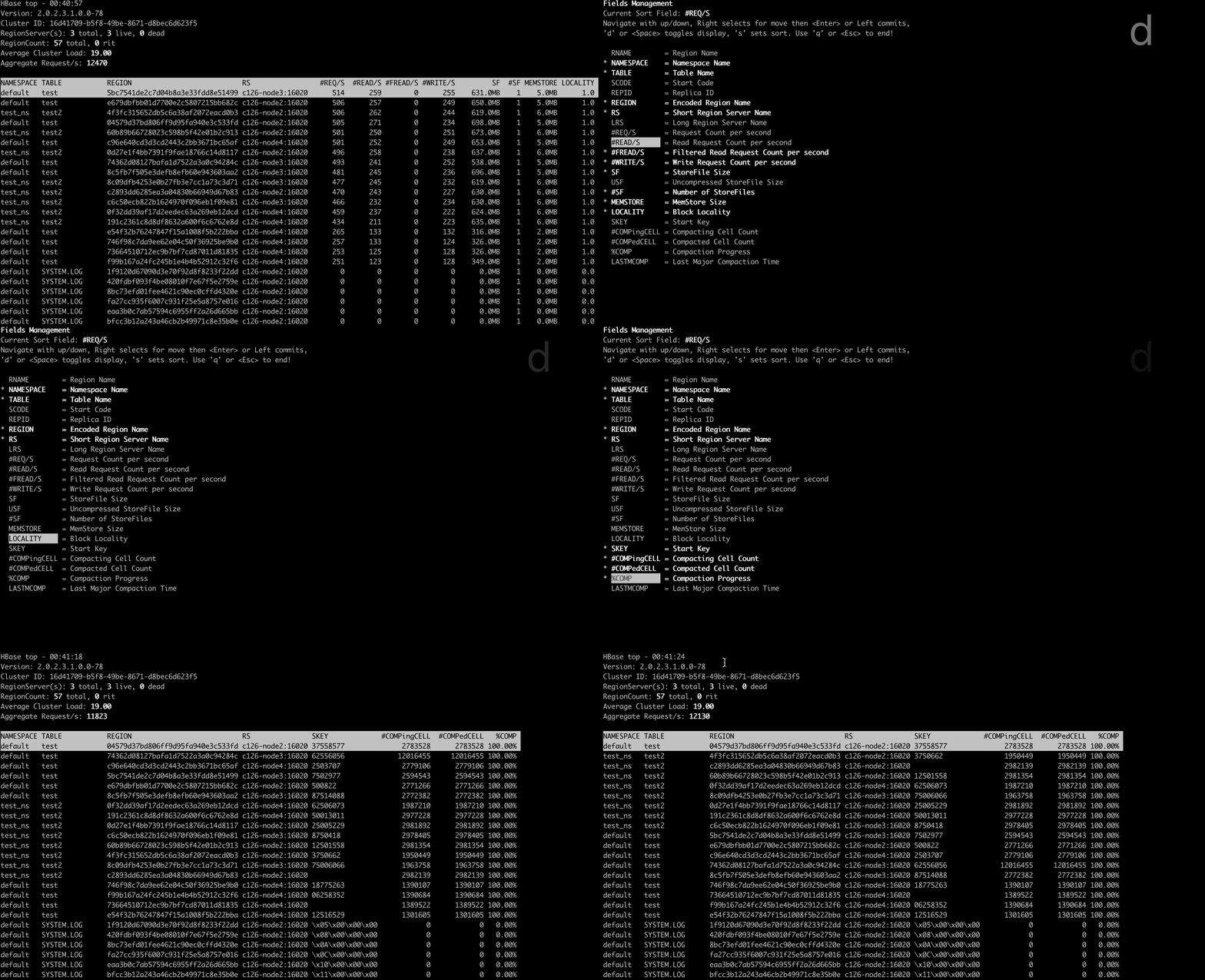
Changing the displayed fields
You can move to the field screen by pressing f key in the top screen. In the fields screen, you can change the displayed fields by choosing a field and pressing d key or space key.
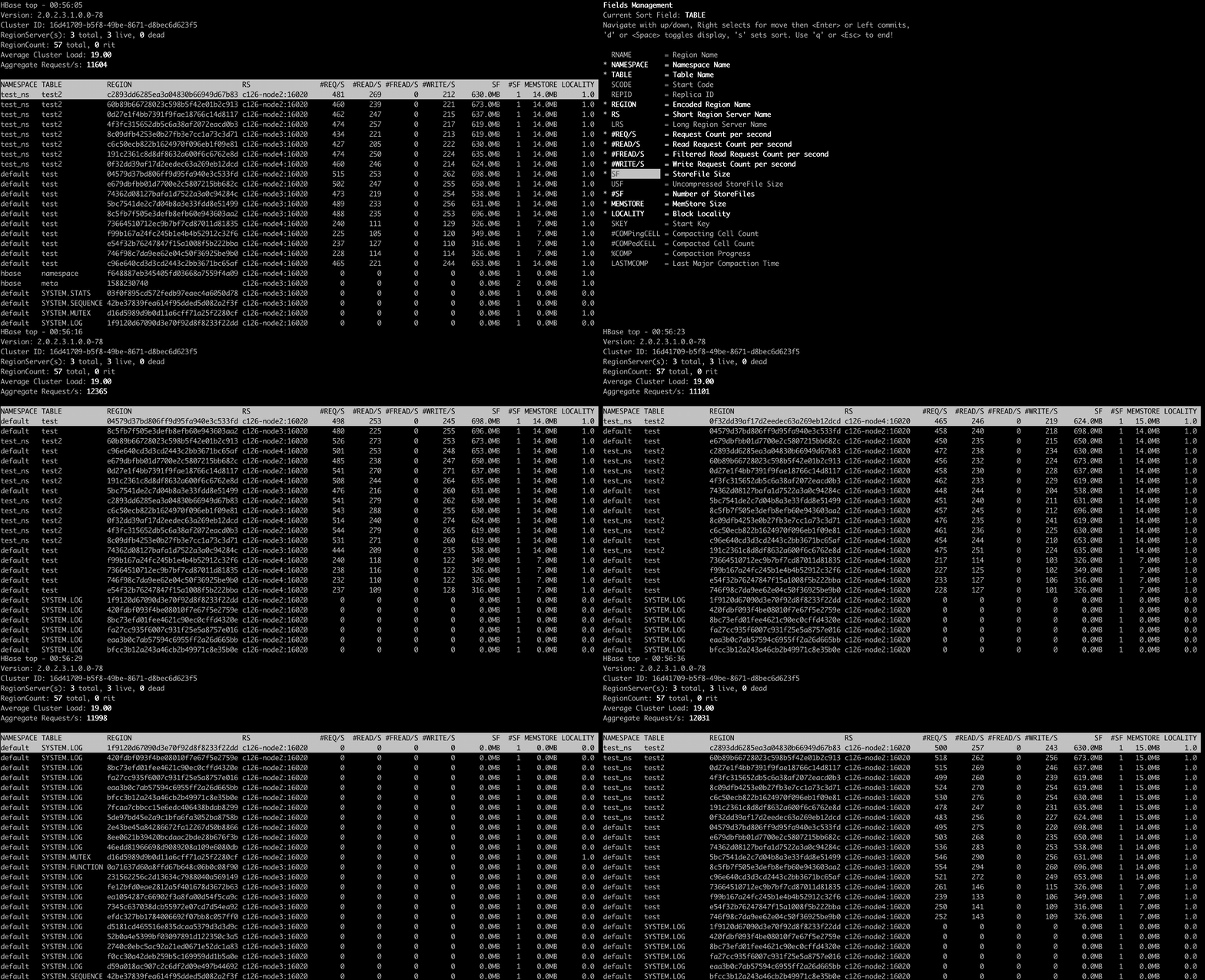
Changing the sort field
You can move to the fields screen by pressing f key in the top screen. In the field screen, you can change the sort field by choosing a field and pressing s. Also, you can change the sort order (ascending or descending) by pressing R key.
Changing the order of the fields
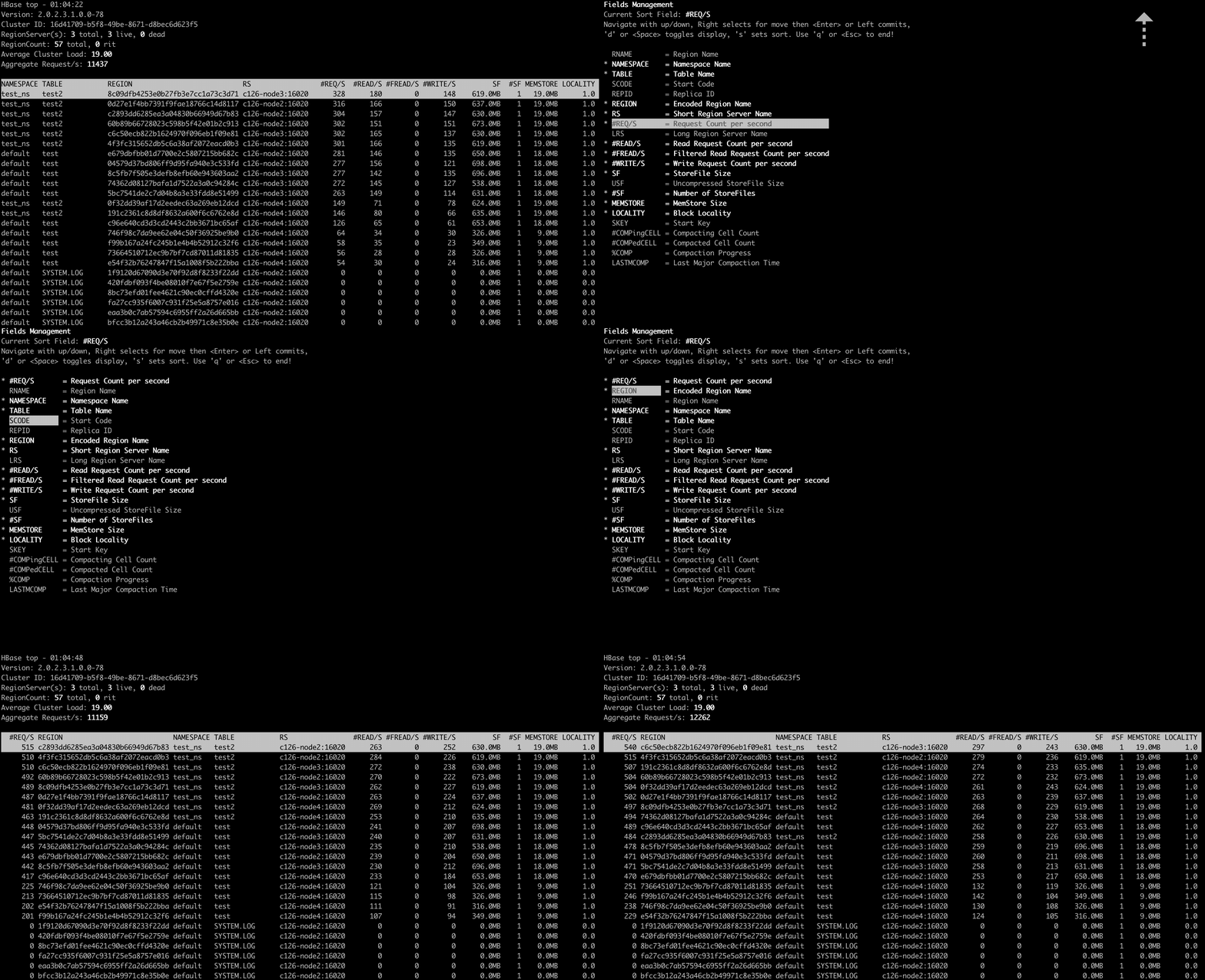
You can move to the fields screen by pressing f key in the top screen. In the field screen, you can change the order of the fields.
Filters
You can filter the metric records with the filter feature. We can add filters by pressing o key for ignoring case or O key for case sensitive.
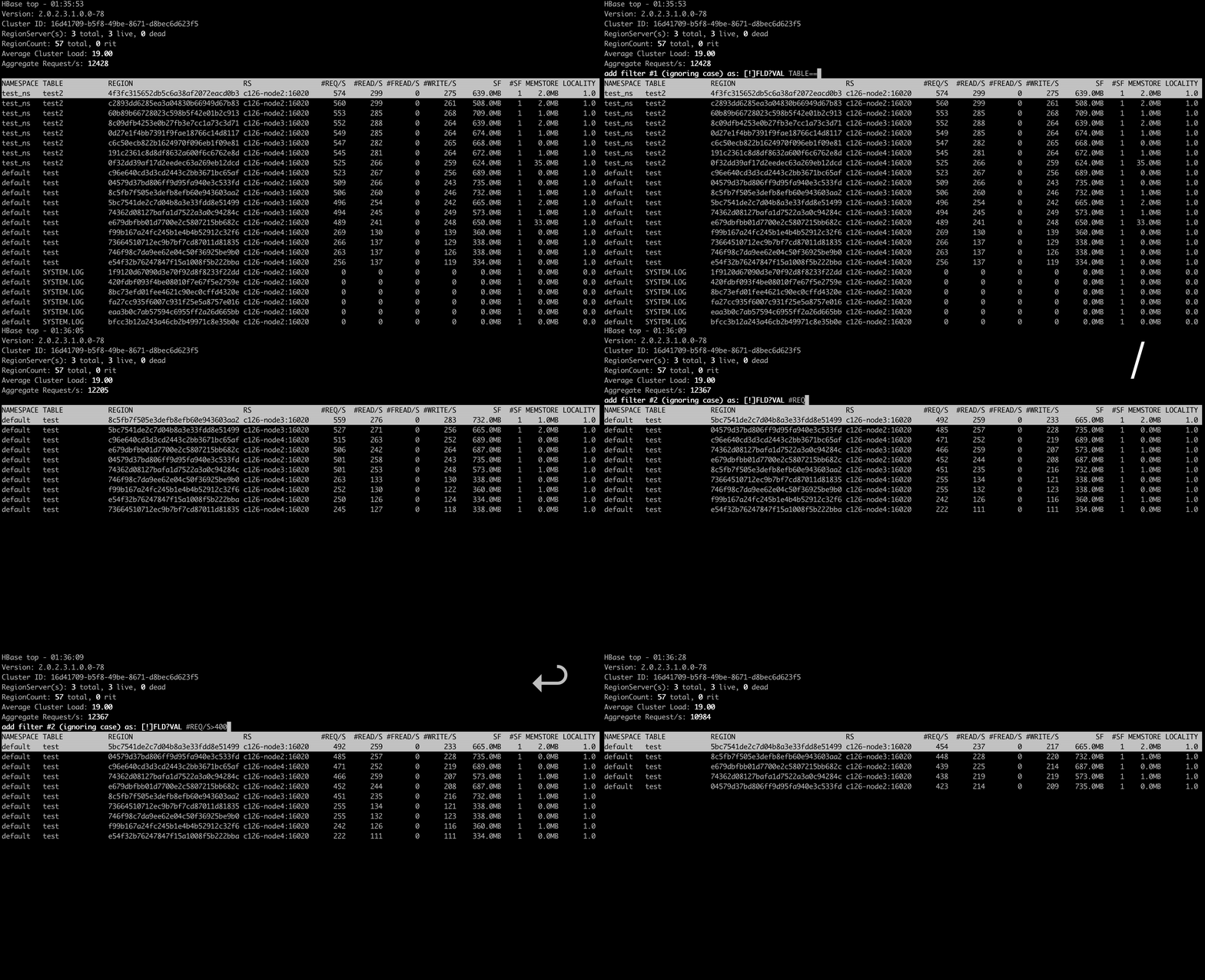
The syntax is as follows:
<Field><Operator><Value>For example, we can add filters like the following:
NAMESPACE==default
REQ/S>1000
The operators we can specify are as follows:
| Operator | Description |
|---|---|
| = | Partial match |
| == | Exact match |
| > | Greater than |
| >= | Greater than or equal to |
| < | Less than |
| <= | Less than and equal to |
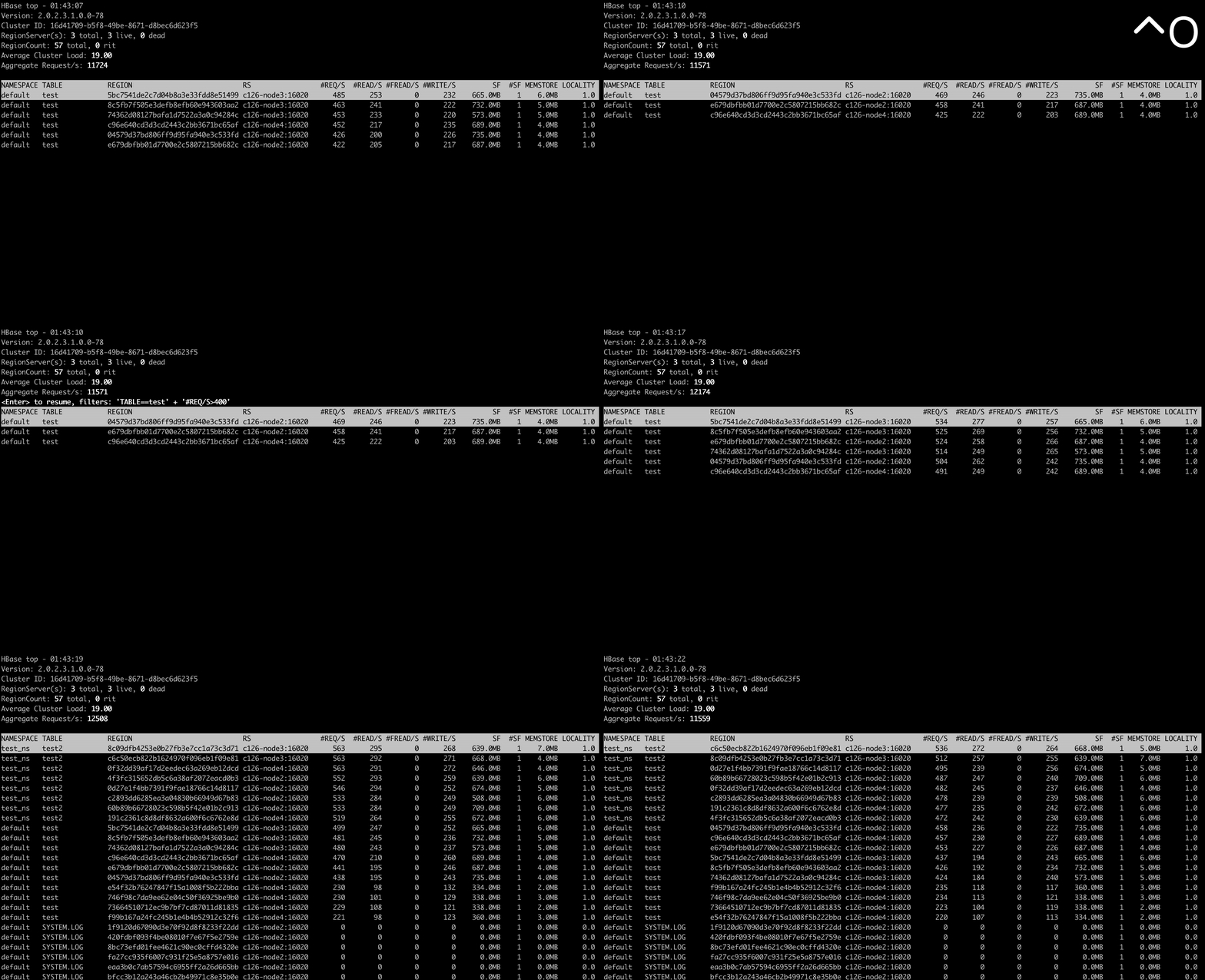
You can see the current filters by pressing ^o key and clear them by pressing = key.
Drilling down
You can drill down the metric record by choosing a metric record that you want to drill down and pressing i key in the top screen. With this feature, you can find hot regions easily in a top-down manner.
Help screen
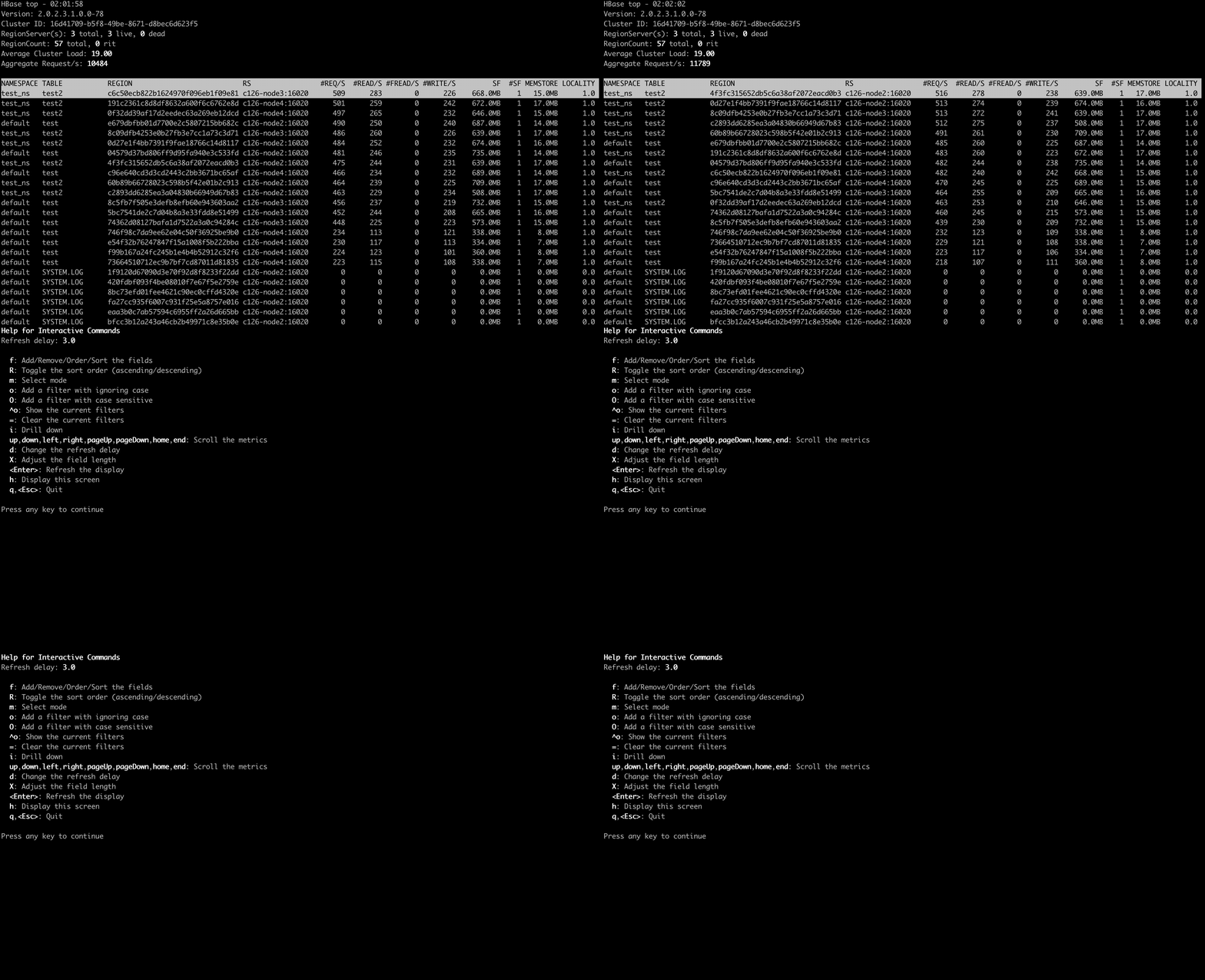
You can see the help screen by pressing h key in the top screen.
Others
How hbtop gets the metrics data
hbtop gets the metrics from ClusterMetrics which is returned as the result of a call to Admin#getClusterMetrics() on the current HMaster. To add metrics to hbtop, they will need to be exposed via ClusterMetrics.
Community
HBase community decisions, release managers, JIRA policies, commit message format, and guidelines for feature branches.
Tracing
HBase used to depend on the HTrace project for tracing. After the Apache HTrace project moved to the Attic/retired, we decided to move to OpenTelemetry in HBASE-22120.